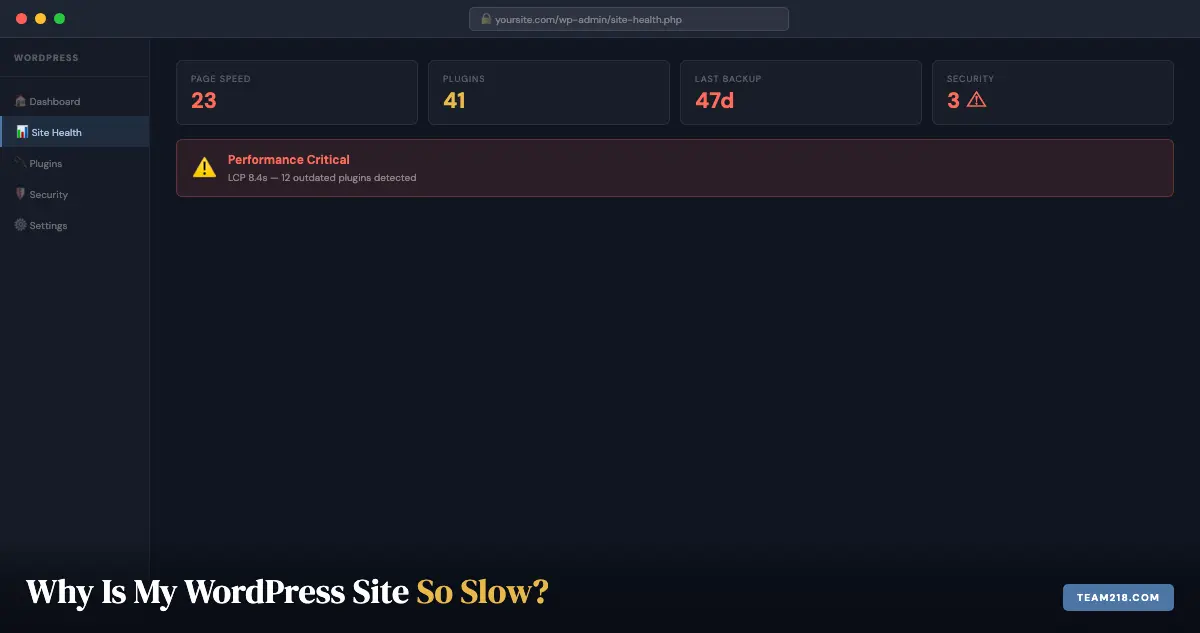
You opened your own website on your phone last week and watched the spinner go. You didn’t time it, but it felt long. Long enough to make you wonder what your customers think when they land on a slow WordPress site.
So why is your WordPress site so slow? In almost every case we see, it comes down to one of seven fixable causes: oversized images, plugin bloat, cheap hosting, a heavy theme, no caching, a cluttered database, or third-party scripts you forgot were there. Usually it’s two or three of them stacked together. This guide walks through each one, shows you how to tell which ones apply to your site, and separates what you can safely fix yourself from what needs a developer.
It’s written for business owners, not developers. You don’t need to know how your car engine works to know when to take it in. Same idea here.
What does “slow” actually cost your business?
According to Google’s own benchmark data, 53% of mobile visitors abandon a page that takes more than 3 seconds to load. That’s more than half your potential customers gone before they read a word. The figure comes from Google’s own mobile page speed benchmarks, and nothing we measure on client sites suggests visitors have grown more patient since.
Speed is also a direct Google ranking signal through Core Web Vitals. A slow site doesn’t just frustrate visitors; it tells Google the page delivers a poor experience, which pushes it down in search results. For a local Iowa business competing on terms like “Des Moines plumber” or “Cedar Rapids accountant,” that ranking drop has a real dollar value.
There’s also the trust factor. A site that loads slowly, especially one with images that pop in late or buttons that lag, feels cheap. It raises the same question a flickering sign raises outside a restaurant: is this business actually on top of things?
How do I check how slow my WordPress site really is?
Don’t guess. Before you change anything, get a baseline. Google PageSpeed Insights (pagespeed.web.dev) is free and takes about a minute. Paste your URL, run the test, and look at three things:
- The mobile score. Above 90 is good. Below 50 is a problem that is costing you rankings. Mobile is the score that matters, because it’s the one Google uses.
- Largest Contentful Paint (LCP). This is how long the main content takes to appear. Google’s target is under 2.5 seconds. Over 4 seconds is a fail.
- The “Diagnostics” section. It lists specific issues by estimated time savings, biggest impact first. Your top three items here are your to-do list.
Run the test on your homepage and on one interior page, such as a service page or a blog post. Homepages are often the fastest page on a site because they get the most attention; the interior pages are where the real problems hide.
If the results read like a foreign language, that’s what we’re here for. We read these reports every week as part of our WordPress care plans.
What are the most common causes of a slow WordPress site?
WordPress is not inherently slow. What makes WordPress sites slow is almost always one of the seven things below, and usually a combination of more than one. We’ve ordered them by how often we find them on the sites we take over.
1. Images that were never optimized
This is the single most common culprit, and the one non-developers can fully solve themselves. Someone uploads a photo straight from a phone, a 4MB file that’s 4,000 pixels wide, and WordPress displays it in a 600-pixel column. The browser still downloads the full 4MB.
The same image, correctly prepared for the web, is usually under 200KB and looks identical on screen. Most sites we take over for care have media libraries full of multi-megabyte files. Fixing the ten heaviest images on a site usually produces a bigger speed gain than any plugin you could install.
The workflow that works:
- Resize before uploading. If the display area is 800px wide, a 4,000px image wastes most of its bytes. Resize to the largest size actually displayed.
- Convert to WebP. Typically 25 to 35% smaller than JPEG at the same visual quality, and supported by every current browser.
- Compress. Squoosh is free, runs in the browser, and shows a live before-and-after so you can find the point where quality starts to suffer.
- Lazy-load everything below the fold, but let the hero image load eagerly. The first thing visitors see should not be the last thing to appear.
2. Too many plugins doing the same job
Every active plugin adds code that runs on every page load. A site with 40 plugins (not unusual) is running 40 sets of scripts, styles, and database queries just to show your homepage.
Some plugins are essential. Many are redundant, abandoned by their developers, or doing something a better plugin already covers. We regularly audit care plan sites and find three different contact form plugins, two backup plugins, and a slider from 2019 that nobody has touched since launch. Each one is load weight with no benefit.
The count matters less than the quality. Ten well-built plugins can be faster than three badly built ones. The plugins that hurt most are the ones that load their CSS and JavaScript on every page whether the page uses them or not. A contact form plugin loading its assets on all 40 pages is doing 39 pages’ worth of unnecessary work.
3. A hosting plan that was never meant for your traffic
Shared hosting (the $5-a-month variety) puts your site on a server with hundreds or thousands of other sites. When any of those sites gets a traffic spike, yours slows down. You have no control over your neighbors.
The tell is Time to First Byte (TTFB), the wait between a visitor’s request and the first byte of response. PageSpeed Insights reports it. Anything over roughly 600 milliseconds points at the server, not your content, and no amount of image work will compensate. For an Iowa business serving Iowa customers, a server located in the US matters measurably.
For most small business sites, a managed WordPress hosting plan from a reputable provider solves this entirely. The cost difference is usually $20 to $40 a month, and it’s worth it when your site is actually fast. This is not a DIY fix. It’s a hosting conversation.
4. A theme that loads everything whether you need it or not
Page builders like Divi are powerful, but out of the box they load a lot of CSS and JavaScript, including code for features your site doesn’t use. A well-maintained Divi site is fast. A Divi site where every module’s styles load globally and nobody has looked at the settings in two years is not.
Divi has a Performance tab under Theme Options with settings for Dynamic CSS, Critical CSS, Dynamic JavaScript Libraries, and deferred jQuery. On most of the Divi sites we inherit, those are still at whatever the default was when the site launched. Turning them on and testing each one is often a 15 to 25 point PageSpeed gain by itself. This isn’t a reason to avoid Divi. It’s a reason to have someone who knows the settings configure it.
5. No caching layer
WordPress builds every page dynamically: it queries the database, pulls in your content, runs your plugins, and assembles the HTML on the fly, every time someone visits. Caching saves a pre-built copy of each page so most visitors get that static version instead of triggering the full build.
Without caching, every visit is a full database round-trip. With caching, most visits serve a file from memory in milliseconds. Good managed hosts include server-level caching. If yours doesn’t, a caching plugin like LiteSpeed Cache (on LiteSpeed servers) or WP Rocket does the job, as long as it’s configured and tested rather than just activated.
6. A database nobody has cleaned in years
This one is invisible from the front end, and it’s the cause most DIY guides skip. Every time you save a page, WordPress stores a revision, a full copy of the previous version. A page edited 80 times has 80 copies in the database. Multiply that across every page and post, add expired transients, spam comments, and leftover tables from plugins deleted years ago, and the database WordPress has to search on every page load gets slow.
The other silent offender is autoloaded options: settings WordPress loads into memory on every single request. Plugins routinely leave their settings behind when uninstalled, and we’ve seen sites carrying 3 to 5MB of autoloaded data that should be under 1MB. Cleaning this up is a developer task, because deleting the wrong row can break the site, but the payoff on an older site is substantial.
7. Third-party scripts you forgot were there
Chat widgets, Facebook pixels, heat-mapping tools, embedded fonts, review badges, YouTube embeds, the booking widget from a vendor you stopped using. Each one loads from someone else’s server, and each one can block your page from rendering until it responds. Your site is only as fast as the slowest thing it waits on.
Open your homepage, count the third-party tools you’re actually using, and remove the rest. For the ones you keep, a developer can defer them so they load after your content instead of before it. Font loading alone is a common win: many Divi sites load four or five Google Font weights and use two. When we rebuilt our own site we moved the two fonts we use onto our own server, which removed the trip to Google’s CDN and took 200 to 400 milliseconds off the first paint.
Which of these is slowing down my site?
You can narrow it down in about ten minutes without touching anything. Match your symptoms to the likely cause:
Slow everywhere, all the time
Usually hosting or caching. Check TTFB in PageSpeed Insights. Over 600ms means the server is the bottleneck.
Slow on some pages, fine on others
Almost always images or heavy embeds on the slow pages. Compare the “Diagnostics” list between a fast page and a slow one.
Slow only at certain times of day
Shared hosting neighbors, or a scheduled task (backups, cron jobs) running during business hours. A hosting conversation.
Got slow suddenly
A recent plugin or theme update, a new third-party script, or malware. If nothing changed on your end, treat it as a security question first (see below).
Got slow gradually over years
Database bloat and plugin accumulation. The site was fine at launch and has been quietly collecting weight since.
Front end is fine, but wp-admin crawls
Autoloaded options, a bloated database, or a plugin hammering the WordPress Heartbeat API. Common on older WooCommerce sites.
What can I fix myself, and what needs a developer?
Be honest with yourself about this one. Some things are genuinely DIY. Others look simple until they break something, and “something” is usually your contact form or your checkout.
Reasonable to do yourself:
- Compressing and resizing images before uploading (30 seconds each in Squoosh)
- Deactivating plugins you haven’t used in over a year, one at a time, checking the site after each
- Removing third-party embeds and widgets you no longer use
- Turning on Divi’s built-in Performance options, one at a time, and re-testing after each
- Running PageSpeed Insights before and after every change so you know what actually helped
Better left to a developer:
- Bulk-converting an existing media library to WebP (risky to do manually at scale)
- Auditing plugin conflicts (deactivating the wrong one can take down forms, checkout, or navigation)
- Database cleanup, revision pruning, and autoload optimization
- Configuring advanced caching, a CDN, or deferred script loading
- Updating PHP. Anything older than PHP 8.2 no longer receives security fixes (PHP 8.1 reached end of life at the close of 2025), it is measurably slower, and the upgrade can surface plugin incompatibilities that need to be handled
- Anything on a live site that involves touching PHP files
If the developer list is where your site’s problems live, this is what that work costs with us: most WordPress repairs, speed included, land between $200 and $500. We assess first and give you an estimate before any work starts, and there is no hourly meter running while you are not looking.
Measure, change one thing, measure again
Speed work without measurement is guessing. Establish a baseline, then verify each change actually helped. PageSpeed Insights gives you Core Web Vitals and prioritized recommendations. GTmetrix adds a waterfall view showing exactly which asset is slowest. WebPageTest lets you test from specific locations and connection speeds.
Change one variable at a time. Applying five fixes at once tells you the site got faster, but not which change did it, or which one quietly broke your contact form.
What mistakes make a slow WordPress site worse?
We see the same well-intentioned moves backfire over and over:
- Installing a second caching plugin because the first one “didn’t work.” Two caching plugins fight each other and the site gets slower, or breaks.
- Installing an image optimization plugin and never running it. The plugin only helps if it actually processes the existing library, and most of them charge for that.
- Chasing a 100 score. The difference between 88 and 100 is rarely worth the cost. The difference between 35 and 85 is where the business impact lives.
- Deleting plugins on the live site with no backup. Test on staging, or at least take a backup first.
- Switching hosts to fix a problem that was never hosting. If your TTFB is fine, moving hosts won’t help. Diagnose first.
When is slow a symptom of something worse?
Sometimes a site that suddenly slows down isn’t slow because of images or plugins. Malware can cause performance problems. Infected WordPress sites often run hidden scripts that use your server’s resources to send spam, mine cryptocurrency, or redirect traffic. The site feels slow to you, but something else entirely is happening in the background.
Signs this might be the case: the slowness appeared suddenly rather than gradually, your hosting company flagged unusual resource use, or visitors are reporting redirects to unrelated sites. If any of those are true, WordPress repair, not performance optimization, is the right starting point. Our guide on what to do when your WordPress site is hacked walks through the first steps.
How do I keep my WordPress site fast after it’s fixed?
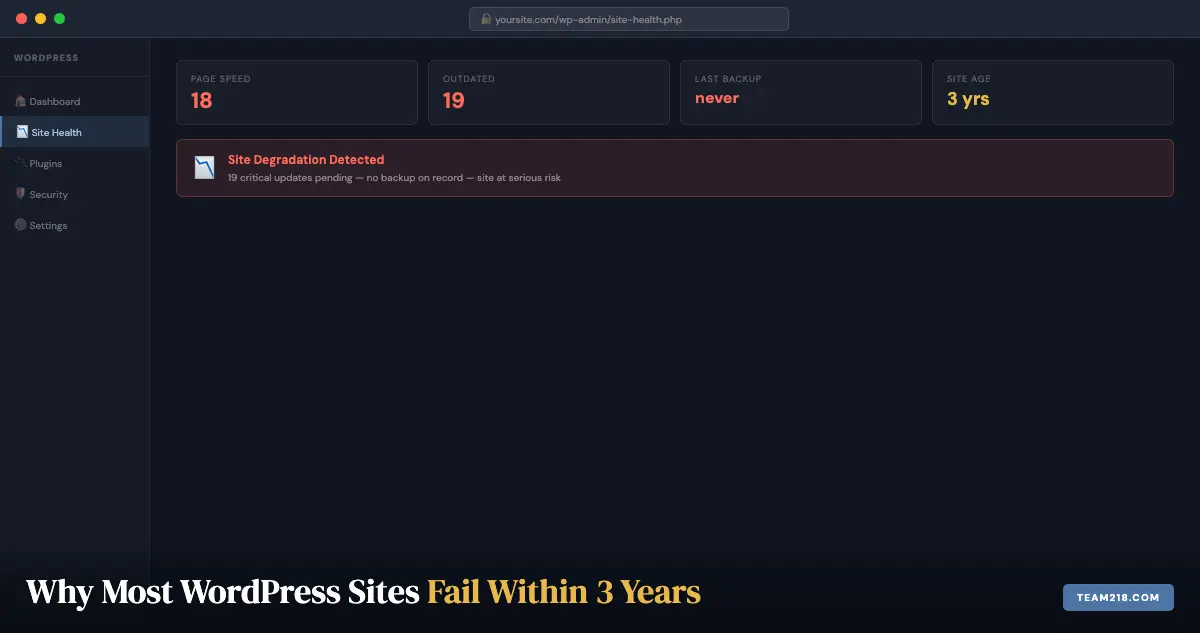
Most of the problems above don’t develop overnight. They accumulate over months and years of inattention: plugins that were never updated, images added without compression, a database that’s never been cleaned, a hosting plan nobody has reviewed since the site launched. That pattern is a big part of why most WordPress sites fail within three years.
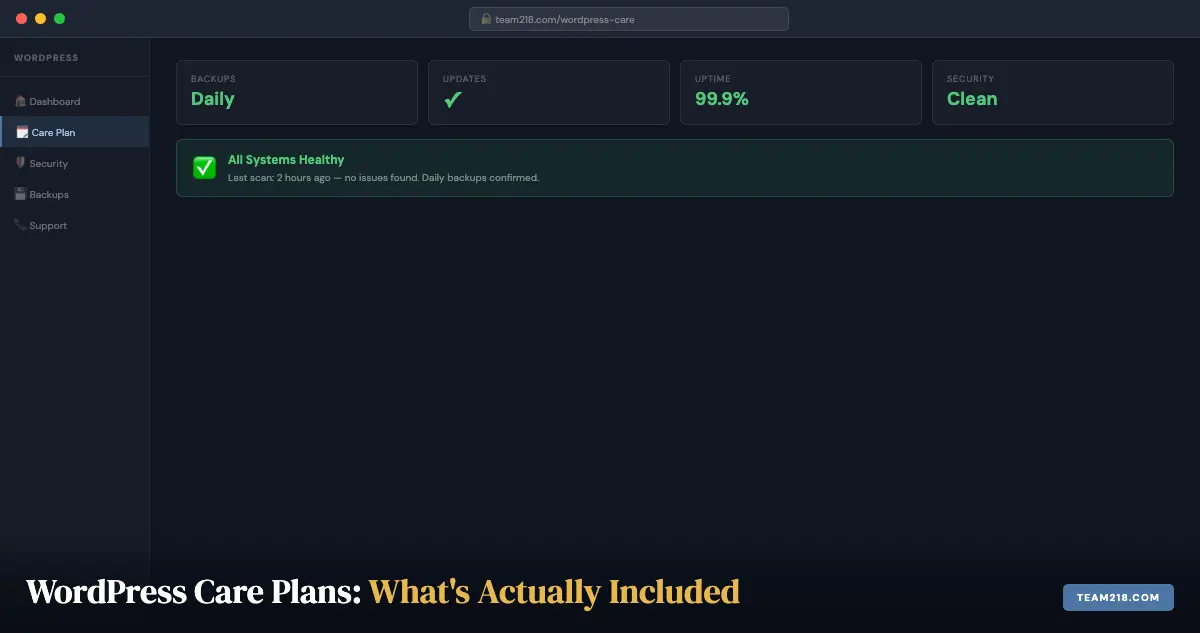
A WordPress care plan keeps the maintenance current: plugin and core updates, uptime monitoring, performance tracking, and someone actually watching the numbers. If you’re not sure what that covers, we’ve written up exactly what’s included in a care plan and what isn’t. We include 12 months free with every site we build, because a site that isn’t maintained starts to degrade the day it launches.
Not sure where to start? Request a free website audit and we’ll tell you exactly what’s slowing your site down. No charge for the initial look.
Frequently asked questions
How fast should a WordPress site load?
Aim for under 3 seconds on mobile. Under 2 seconds is excellent. Google’s Core Web Vitals target Largest Contentful Paint (LCP) under 2.5 seconds. Most well-maintained WordPress sites on decent hosting hit this without heroics.
Does a slow site affect SEO?
Yes. Page speed is a confirmed Google ranking factor, and Core Web Vitals (which include speed metrics) are part of the page experience signal. A slow site is harder to rank than a fast one, all else equal. It also loses the visitors who do arrive, which compounds the problem.
Why is my WordPress site slow only on mobile?
Mobile devices have less processing power and often slower connections, so heavy JavaScript and oversized images hurt more there. If your desktop score is fine and mobile is failing, the usual causes are images that aren’t sized for small screens and scripts that block rendering. Mobile is the score Google uses, so treat it as the real number.
Why is my WordPress admin dashboard so slow?
A slow wp-admin with a normal front end usually points at the database: bloated autoloaded options, thousands of revisions, or a plugin making constant background requests through the Heartbeat API. It’s a common complaint on older WooCommerce sites. Cleanup is a developer task, but it’s usually a quick one.
Can I fix my slow WordPress site without rebuilding it?
Usually yes. In most cases, optimizing images, cleaning up plugins, adding caching, tuning the theme settings, and upgrading hosting resolves the speed problem without touching the design or content. A full rebuild is rarely the right answer for a speed problem alone.
Will adding a caching plugin break my site?
It can, if configured incorrectly or if it conflicts with another plugin. Never run two caching plugins at once. Test on staging before applying changes to a live site. If you’re not sure what staging means, that’s also something we can help with.